Workspace Creation
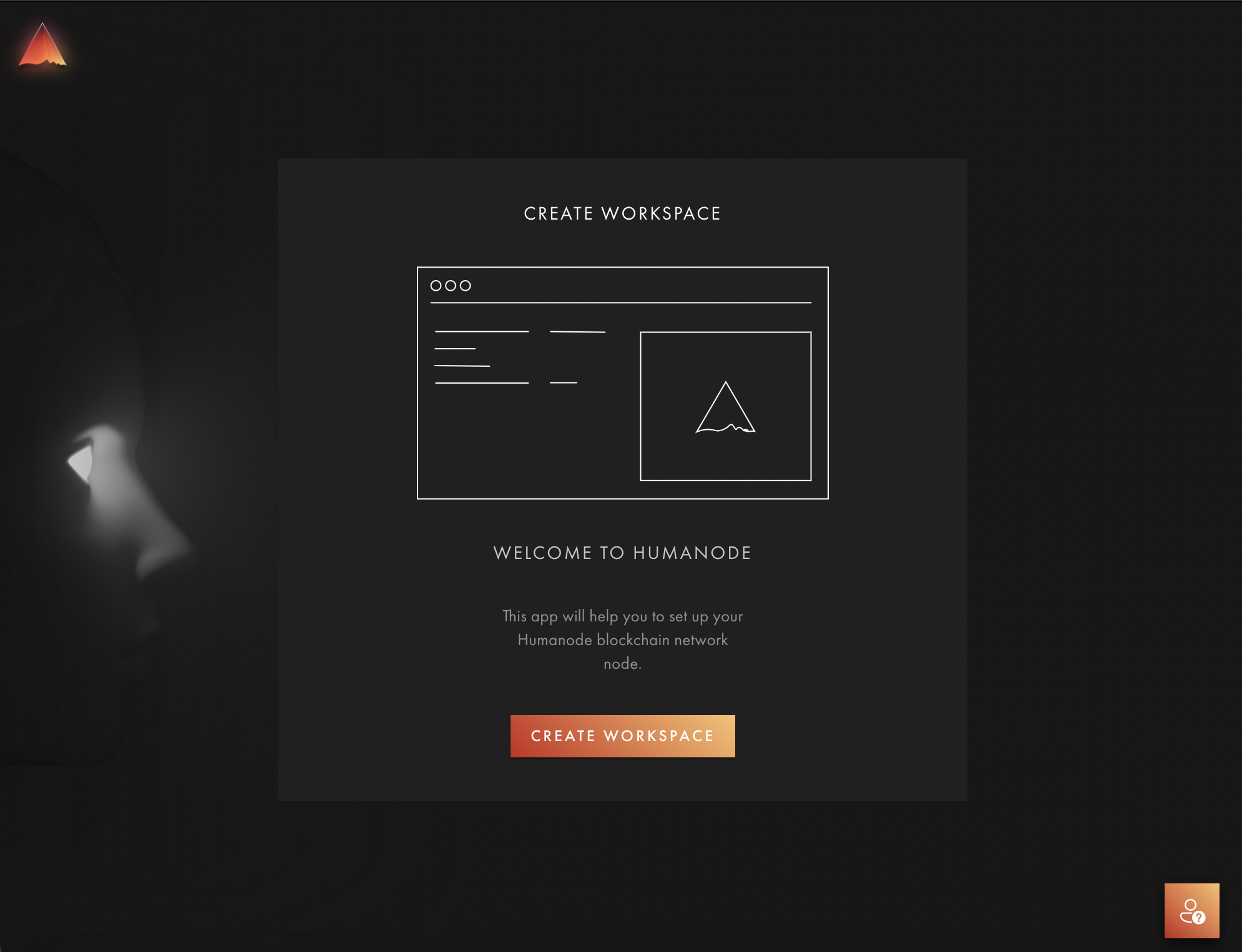
After the app is launched, you will see the Welcome screen with the Create Workspace button. Pressing this button will create a directory for the further installation of the Humanode peer. The question mark (?) contains useful links to our guide, discord channel and the latest version of the app.
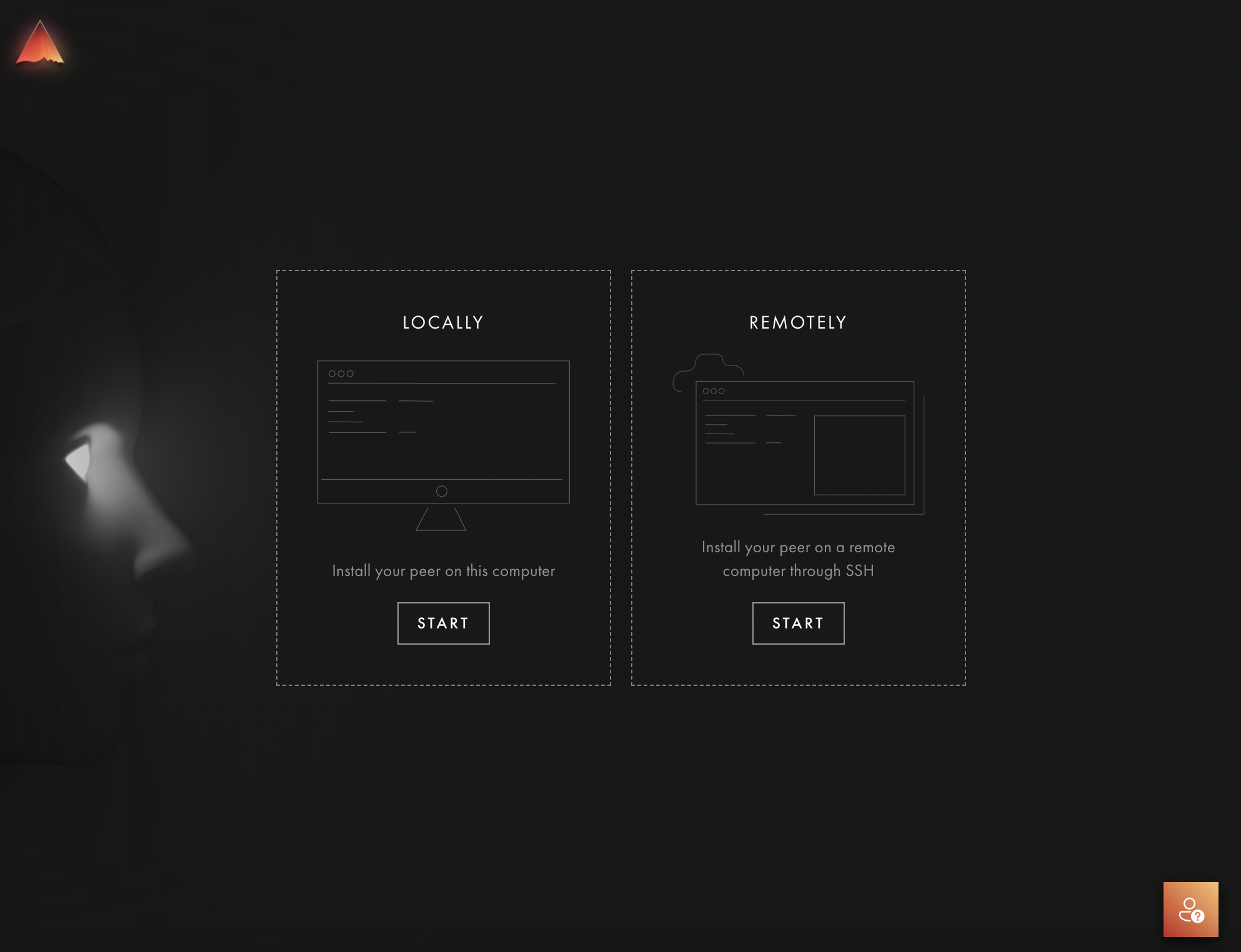
After pressing Create Workspace you will be asked to choose where to install the node. There are two ways of installing it:
- Start Locally - this allows you to install and run the node from your local machine (the same system the Desktop App itself runs on).
- Start Remotely - this allows you to connect the app to a remote system via SSH and run the node there.
This is for confident users only, so proceed with these options at your own risk.
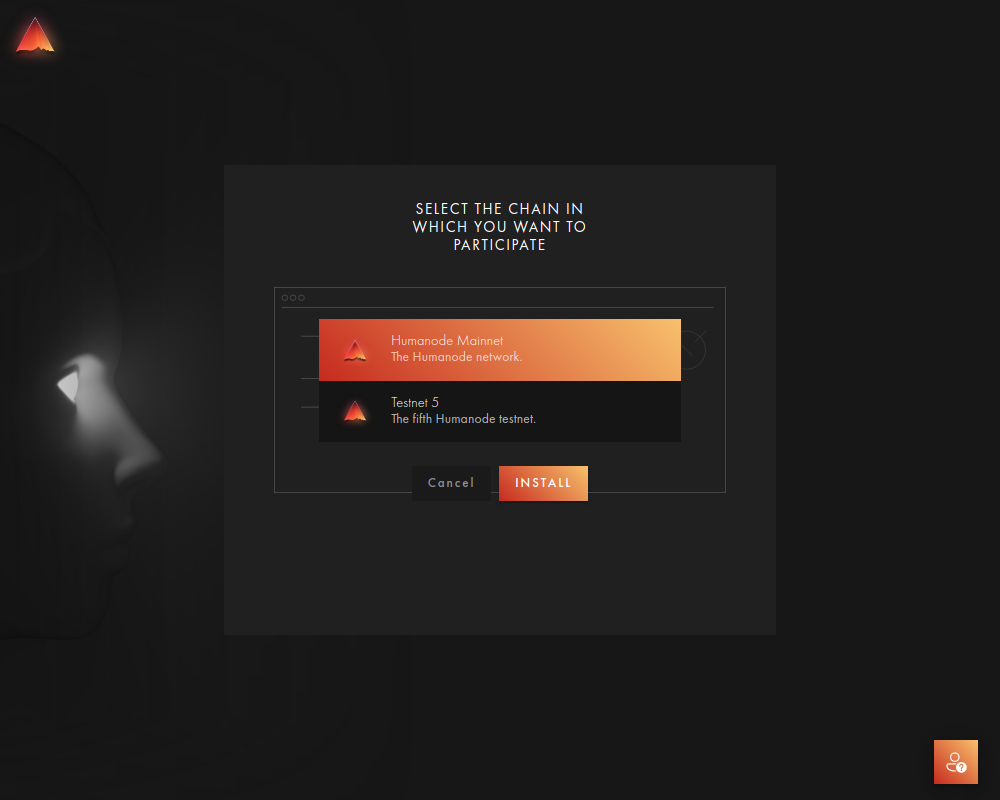
During the workspace creation process, it will prompt you on what chain to install. Choose Humanode Mainnet.