
Windows
Installation on Windows
Section titled “Installation on Windows”Once you click Start locally we will analyze if the node can be installed and if your Windows machine meets all requirements. If you have an outdated WSL version or do not have WSL, we will guide you through the installation process. Press Install to proceed:
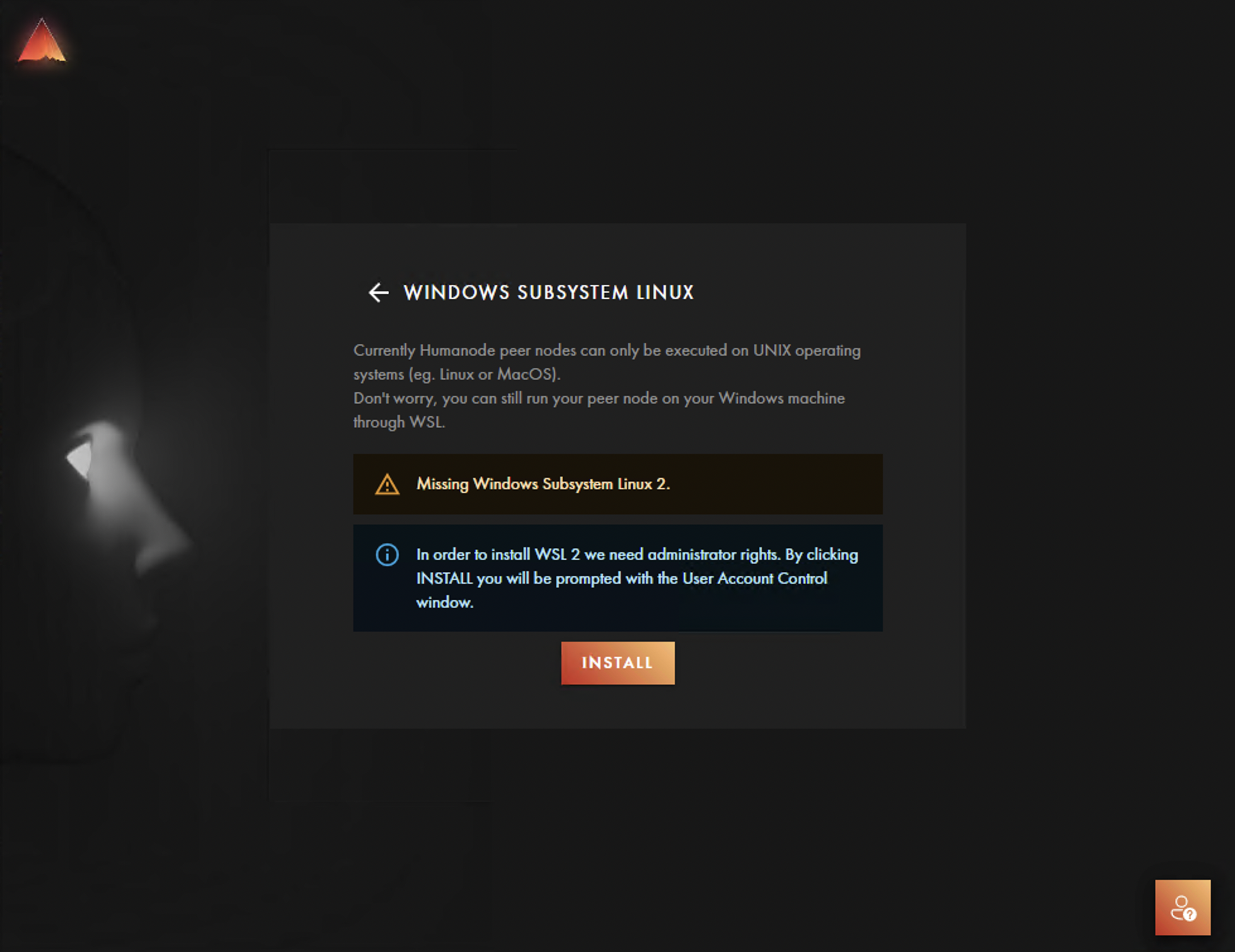
You will see the terminal window with the WSL installation progress.
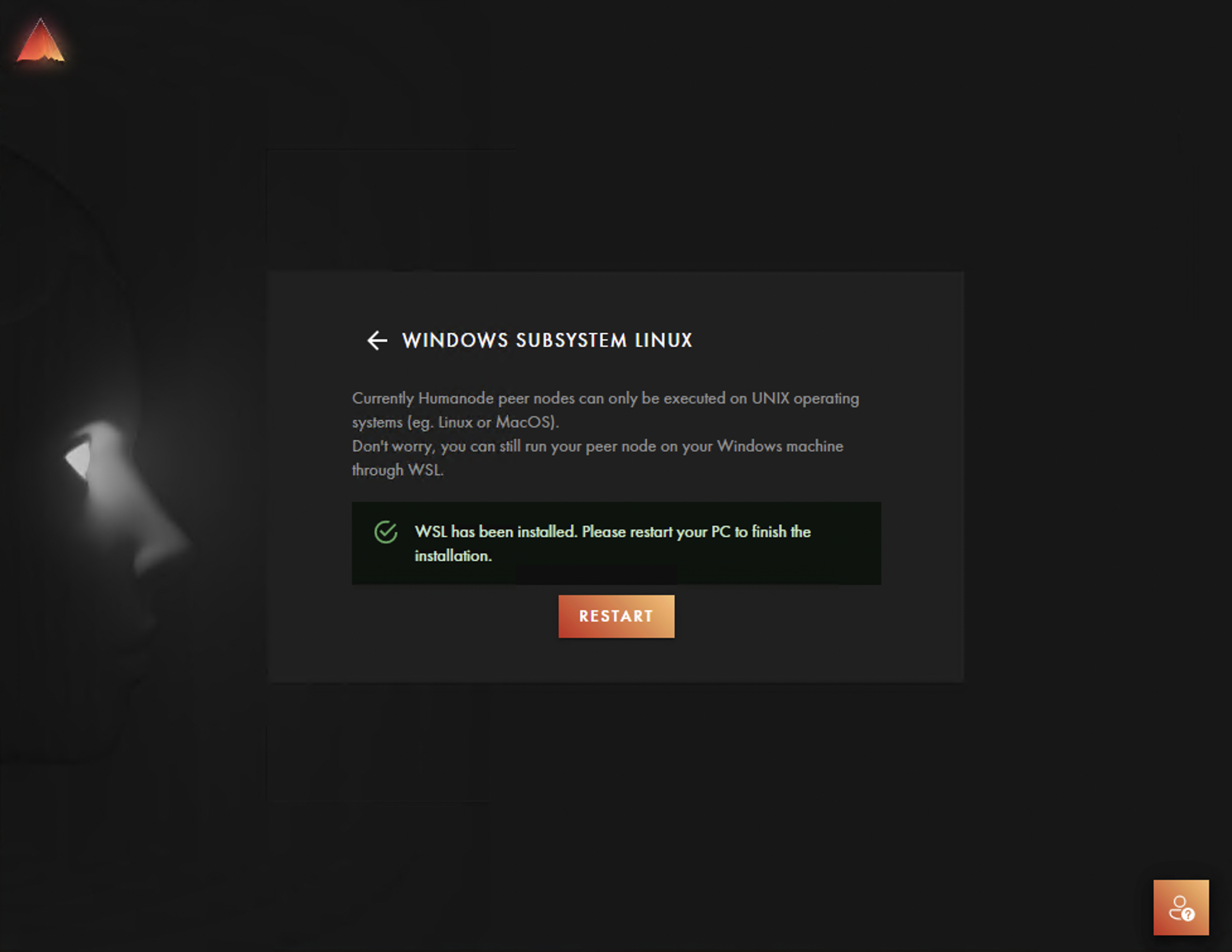
After the installation is completed, you have to reboot the machine by pressing “Restart”.
After you reboot the system, the Ubuntu installation process should start so wait for it, and then run the app, select set up locally, and select the distribution you would like to install. We recommend using Ubuntu:
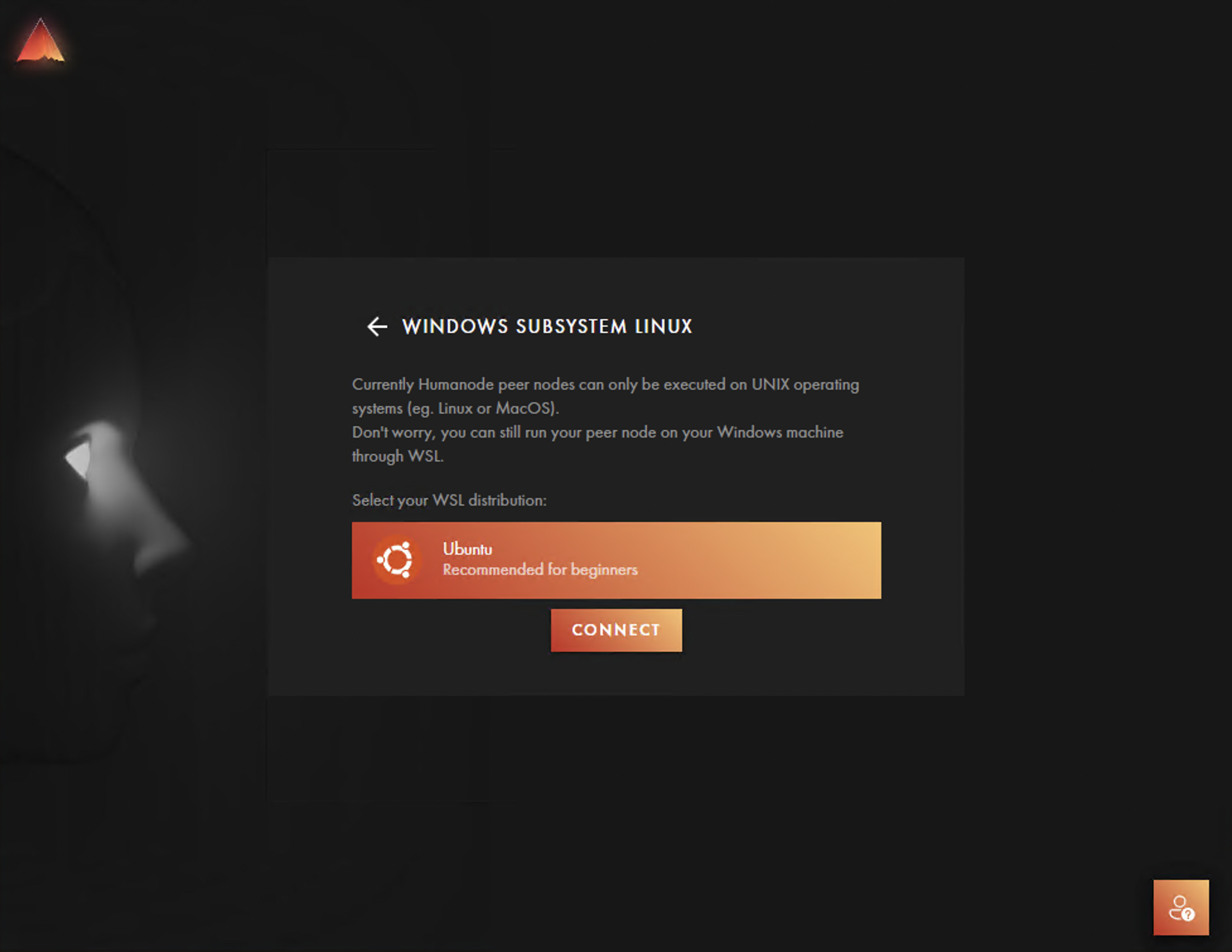
Once you click Install the node installation process begins.
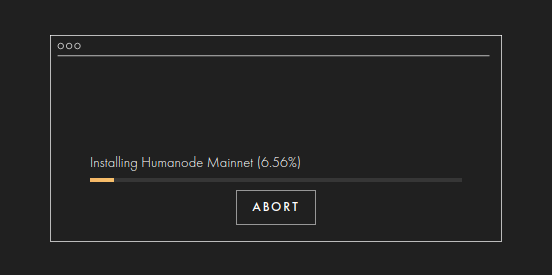
When the progress bar fills to 100%, you will be redirected to the Home screen where the initial configuration begins. This screen indicates that the node was successfully installed and that you now have to configure your node before starting it. Congrats!